


Connect AI assistants to Nusii
Nusii has a built-in MCP server that lets AI assistants work with your account on your behalf. Once connected, you can ask your assistant things like:
- “What’s my proposal conversion rate this quarter?”
- “Draft a proposal for Acme Design from my Website Redesign template.”
- “Update the pricing on that draft — 3 extra design days at my day rate.”
- “Rewrite the introduction section to sound more formal.”
It works with Claude — where Nusii is listed in the connector directory — ChatGPT, Gemini, Microsoft Copilot, Codex, and any other app that supports the Model Context Protocol. This article shows you how to connect the most common ones.
What is MCP?
MCP (Model Context Protocol) is an open standard that lets AI assistants securely talk to other services — think of it as a common language between your assistant and your tools. You connect the assistant once, approve access with your normal Nusii login, and from then on it can look things up and draft proposals for you.
Whichever assistant you use, the server address is the same:
https://app.nusii.com/mcp
In Claude you don’t even need it: Nusii is listed in Claude’s connector directory, so connecting is a couple of clicks.
What can an assistant do?
With read access, an assistant can:
- Summarize your proposals and conversion rate over any period
- List your templates and read their content
- Look up clients
- Read a proposal’s content and pricing
With write access, it can also:
- Create a draft proposal from one of your templates, or from scratch
- Add, update or remove pricing line items
- Apply taxes to a draft’s pricing
- Rewrite sections, add new ones, or remove ones you don’t need
- Attach a client to a draft
- Change a draft’s settings, such as the theme, the expiration date, or the deposit percentage
A few things it can never do, by design:
- It never sends anything. Assistants only create and edit drafts — you review and send proposals from Nusii, like always.
- It can’t touch accepted proposals. Once a client signs, the proposal is locked to MCP just as it is in the app.
- It only sees what you see. Access mirrors your Nusii role — for example, a team member on the Sales role only sees their own proposals.
Signing in and permissions
The first time you connect, your assistant redirects you to Nusii to sign in with your normal login, pick the account it should have access to, and approve the permissions it’s asking for.
One thing worth knowing: the permissions are fixed at the moment you approve them. If you connect with read-only access and later want the assistant to draft proposals for you, disconnect it and connect again, approving write access this time.
Connect your assistant
The steps live in your assistant’s settings, and Nusii’s side is always the same: sign in and approve access. Pick your assistant:
Nusii is listed in Claude’s connector directory. On claude.ai or the Claude desktop app:
- Open the Nusii connector in Claude’s directory — or go to Settings → Connectors, click Browse connectors and search for “Nusii”.
- Click Connect — you’ll be sent to Nusii to sign in and approve access.
- In a chat, open the tools menu (the sliders icon in the message box) and make sure the Nusii connector is switched on.
If your company uses Claude Team or Claude Enterprise, a Claude owner may need to allow the Nusii connector for your organization first.
Then just ask: “What’s my proposal conversion rate this month?”
In your terminal, run:
claude mcp add --transport http nusii https://app.nusii.com/mcp
On first use, Claude Code opens your browser so you can sign in to Nusii and approve access. You can also run /mcp inside Claude Code to authenticate or check the connection.
ChatGPT connects to Nusii through a custom plugin, which requires developer mode (available on paid plans on the web). Once connected, ChatGPT asks for confirmation before any write action, so nothing changes in your account without your say-so.
- In Settings, enable Developer mode.
- Go to Plugins and click the + icon to add a new plugin.
-
In the New Plugin dialog, name it “Nusii”, keep the connection on Server URL and paste
https://app.nusii.com/mcp, and leave authentication on OAuth. ChatGPT shows a standard warning for custom MCP servers it hasn’t reviewed — tick I understand and want to continue, then click Create.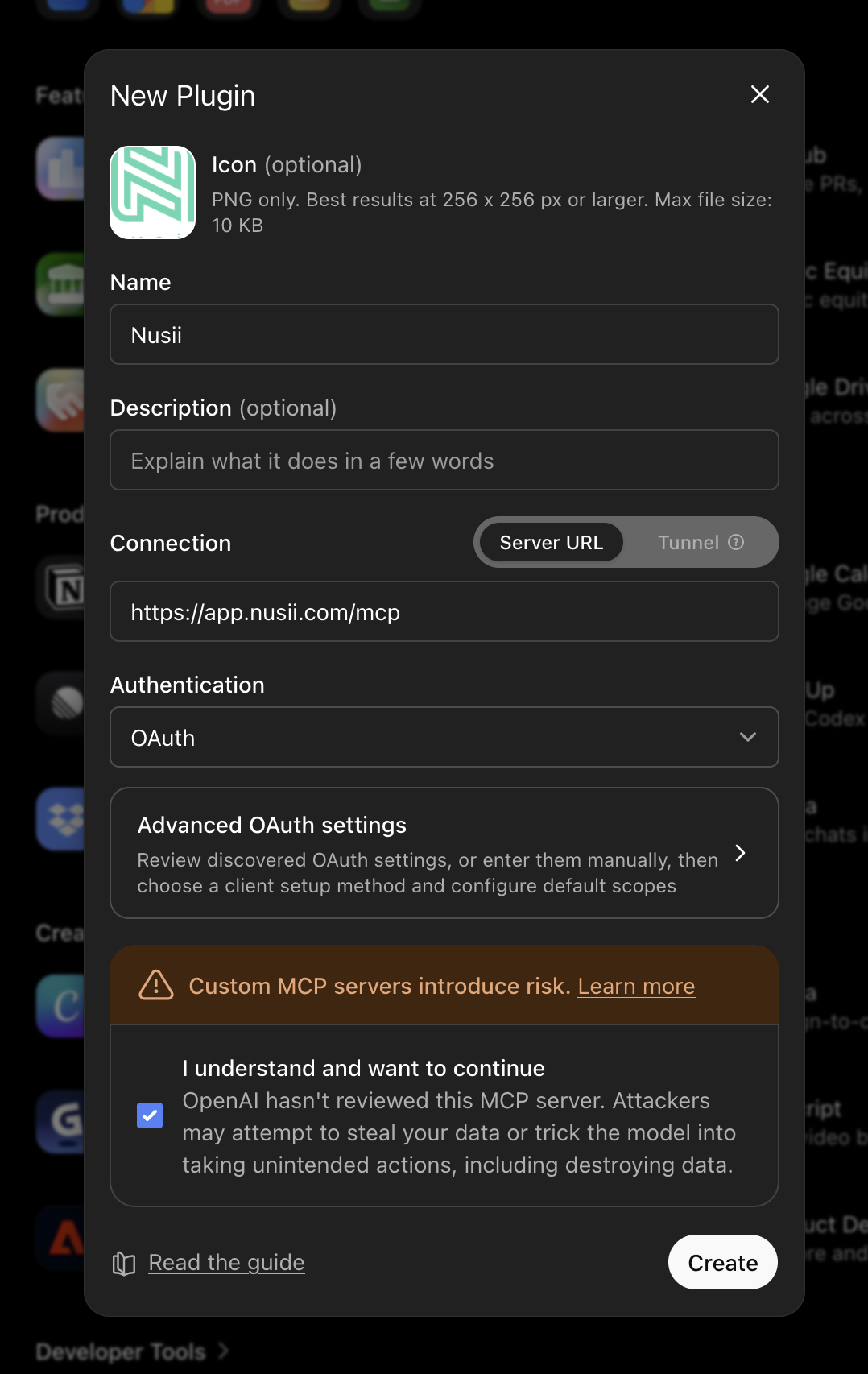
-
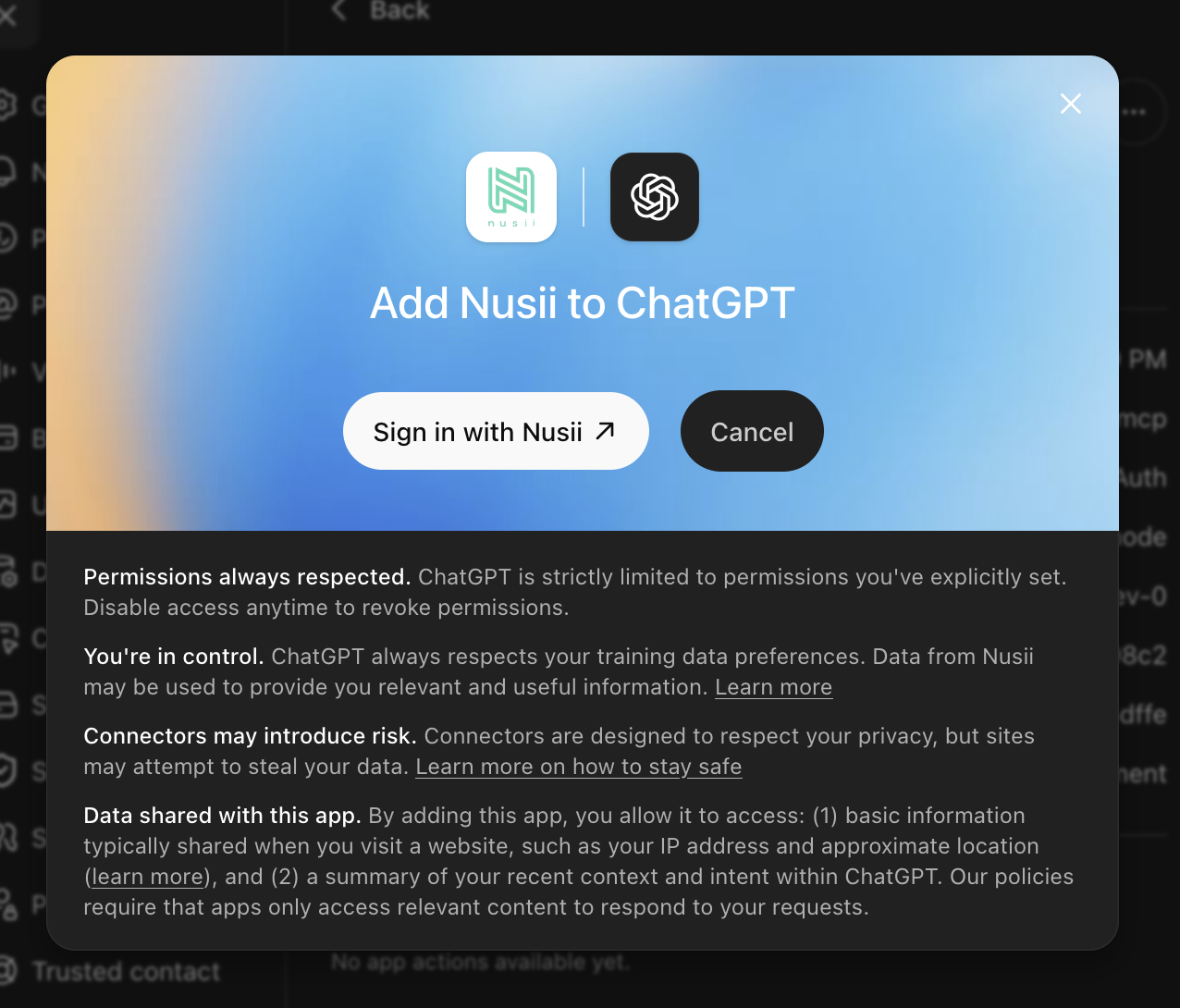
On the Add Nusii to ChatGPT screen, click Sign in with Nusii — sign in with your normal Nusii login and approve access.
Then just ask: “What’s my proposal conversion rate this month?”
Add the server to ~/.codex/config.toml:
[mcp_servers.nusii]
url = "https://app.nusii.com/mcp"
Then sign in to Nusii from your terminal:
codex mcp login nusii
Google’s Gemini CLI is a free terminal assistant with full MCP support. Add Nusii by running:
gemini mcp add --transport http nusii https://app.nusii.com/mcp
Then, inside Gemini CLI, run /mcp auth nusii. Your browser opens so you can sign in to Nusii and approve access, and the connection is saved for future sessions.
The Gemini web and mobile apps are a different story: Google currently only supports custom connections there through custom apps for Gemini Spark, which needs a Google AI Ultra subscription (US only, for now). If you have access, add Nusii under Settings & help → Connected apps using the same server URL.
Microsoft Copilot works a little differently: you don’t add a personal connector, you add Nusii to an agent built in Microsoft Copilot Studio. That’s typically a one-time setup by your IT admin or a technical teammate, and the agent can then be shared with the whole team in Microsoft 365 Copilot.
In Copilot Studio, open your agent and choose Tools → Add a tool → New tool → Model Context Protocol, then fill in the wizard:
- Server name and Server description: “Nusii” and a short line like “Proposal reporting and drafting”
- Server URL:
https://app.nusii.com/mcp - Authentication: OAuth 2.0, with Dynamic discovery as the type
Whoever uses the agent signs in with their own Nusii login and approves access, the same as with every other assistant. The consumer Copilot app doesn’t support custom connections, so Copilot Studio is the way in.
Any app that supports remote MCP servers (Streamable HTTP) with OAuth can connect using the same URL: https://app.nusii.com/mcp. If your app only supports local MCP servers, the mcp-remote bridge usually does the trick:
npx -y mcp-remote https://app.nusii.com/mcp
Ideas to try
Once connected, talk to your assistant the way you’d brief a colleague. A few starting points:
For reporting:
- “How many proposals did we send last quarter, and how many were accepted?”
- “What’s my conversion rate this year, compared to last year?”
- “How many proposals are pending right now?”
For drafting:
- “Draft a proposal for Acme Design from my Website Redesign template.”
- “What’s in my Branding template? Read it back to me before we draft from it.”
- “Create a proposal for Studio Norte with an introduction, a scope of work, and a pricing section.”
For editing a draft:
- “Add a Timeline section after the introduction.”
- “Remove the About Us section from that draft.”
- “Rewrite the executive summary to be shorter and more direct.”
- “Add two extra design days at my day rate, and remove the rush fee line.”
- “Set that draft to expire at the end of the month, and ask for a 30% deposit.”
Staying in control
You’re always in charge of what’s connected to your account:
- Per-member access. Account owners and admins can switch MCP access on or off for each team member under Settings → Team Members.
- See and revoke connections. Every connected assistant is listed under Settings → API in the Connected AI Assistants section, along with the access it was granted. Revoking a connection cuts it off immediately.
- A full activity log. Every request an assistant makes is recorded under Settings → API → MCP Logs, so you can see exactly what it looked up or changed, and when.
Troubleshooting
- The assistant can’t connect or gets “access denied”. Check that your team member has MCP access enabled under Settings → Team Members. If it still won’t connect, get in touch — we’ll sort it out.
- Nusii doesn’t show up in Claude’s connector directory. On Claude Team or Claude Enterprise, ask your Claude owner to allow it. You can also add it yourself: in Settings → Connectors, click Add custom connector, name it “Nusii” and paste
https://app.nusii.com/mcp. - The assistant can read but refuses to draft or edit. Your connection was approved with read-only access. Disconnect and connect again, approving write access this time.
- A team member left. Removing someone from your account cuts their MCP access immediately — no extra cleanup needed.
Related Articles
Before you ask…
Frequently Asked Questions
Common questions about connecting AI assistants to Nusii.
Do I need to be technical to set this up?
Not for Claude or ChatGPT. Nusii is listed in Claude's connector directory, so connecting there takes a couple of clicks, and ChatGPT only needs a few settings. Nusii's side is just your normal sign-in. Claude Code, Codex, and the Gemini CLI are developer tools that live in the terminal, and Microsoft Copilot connects through Copilot Studio (usually your IT admin's department), so those are best left to the more technical folks on your team.
Can the assistant send proposals to my clients?
No. Assistants can only create and edit drafts. Sending a proposal — and anything else a client actually sees — always happens in Nusii, by you.
Does Nusii share my data with AI companies?
No. Nusii never sends your data to anyone. You connect your own assistant, and it only reads from your account when you ask it to. How your conversations are stored or used is between you and your AI provider, so check their data settings if that matters to you.
Can I control what my team connects?
Yes. Owners and admins can switch MCP access on or off for each team member, see every connected assistant along with the access it was granted, revoke any of them instantly, and audit every request in the MCP logs.
Does it cost extra?
No. The MCP server is included with your Nusii subscription — no add-ons, no per-request fees. You only pay for whatever AI assistant you choose to use with it.
My assistant isn't listed here — can I still connect it?
Probably! Any app that supports remote MCP servers can connect — the setup for the assistants above covers the most common apps, but the address is always the same: https://app.nusii.com/mcp. If yours won't connect, email us at support@nusii.com and we'll figure it out together.
Unanswered questions? Email us at support@nusii.com.