

OnePageCRM Integration
If you connect your OnePageCRM account with Nusii, you will have the following features:
- Automatically sync deal stages with proposal statuses, keeping your sales pipeline up to date.
- Import your contacts from OnePageCRM into Nusii.
- Choose which sales pipeline and stages to use when creating and tracking proposals.
- Automatically upload the final signed PDF to the deal and contact in OnePageCRM.
How to set it up
If you don’t have a Nusii account already, you have to get a Nusii account. You’ll also need a OnePageCRM account with API access enabled.
So let’s get your Nusii account ready to work seamlessly together with OnePageCRM!
Step 1: Get your API credentials from OnePageCRM
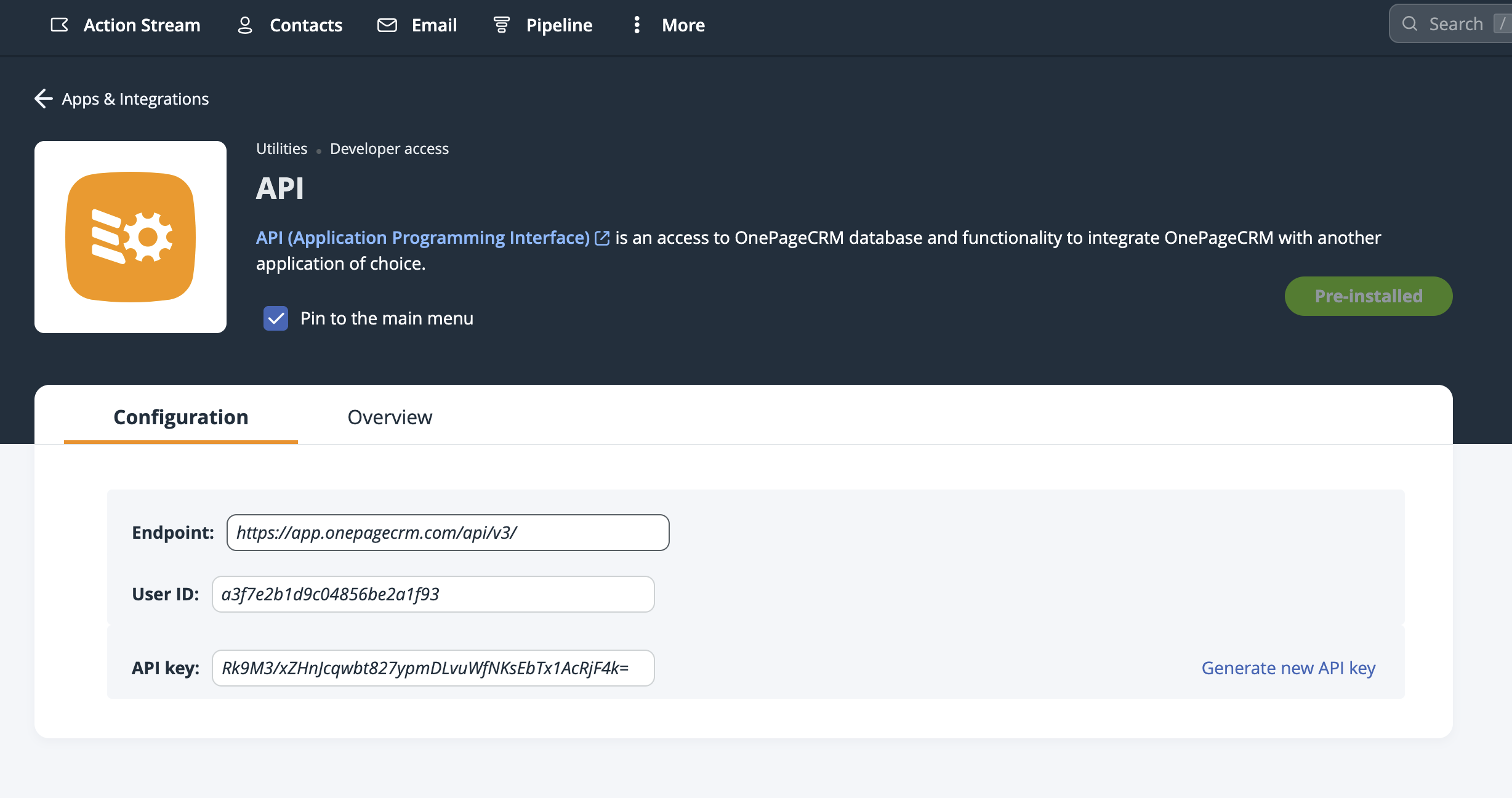
Log in to your OnePageCRM account and go to Settings > API. Click on the Configuration tab. You’ll see your User ID and API Key here – copy both of these values.
Step 2: Connect OnePageCRM in Nusii
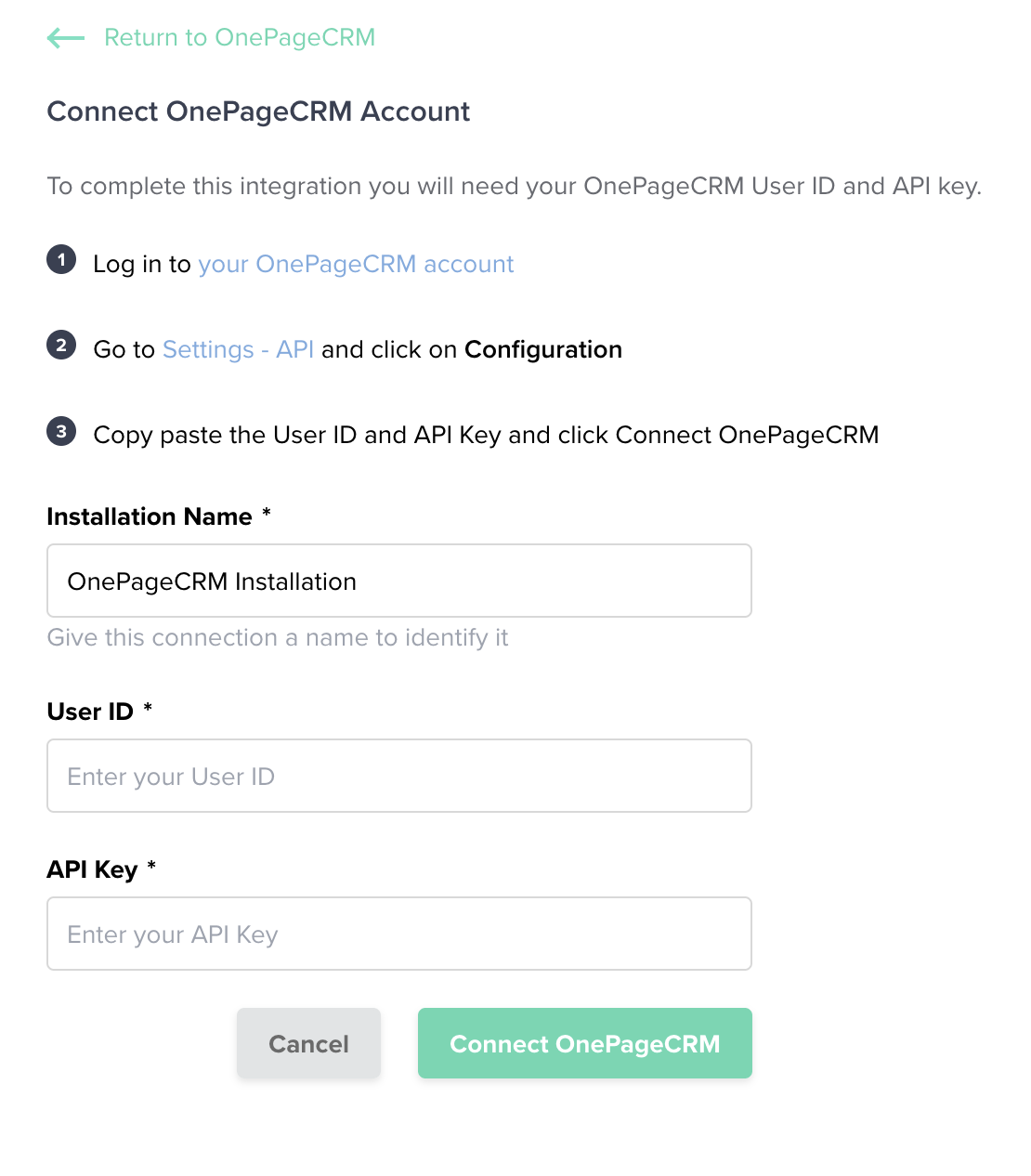
Head to the Integration’s page inside Nusii and click on the OnePageCRM logo. You can also go directly to Settings > Integrations > OnePageCRM.
Paste your User ID and API Key into the corresponding fields, give the installation a name, and click Connect OnePageCRM.
Step 3: Configure your installation
Once OnePageCRM is connected, you’ll see your installation overview. Here you’ll find your synced sales pipelines, client import options, and installation settings.
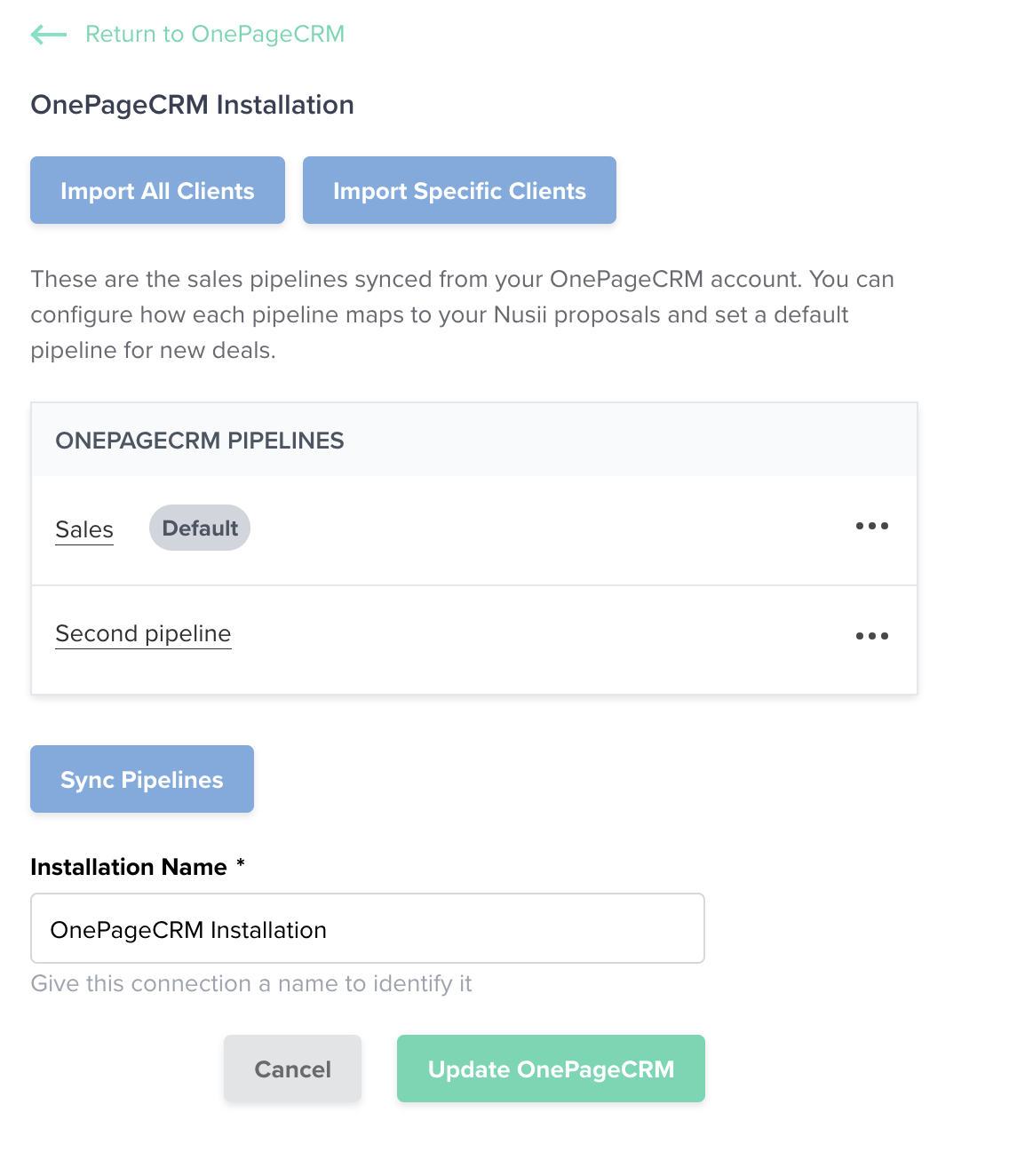
You’ll see all of your OnePageCRM pipelines listed. If you have multiple pipelines, you can choose which one is the default. Nusii will use the default pipeline when creating a new proposal.
Step 4: Configure your sales pipeline stages
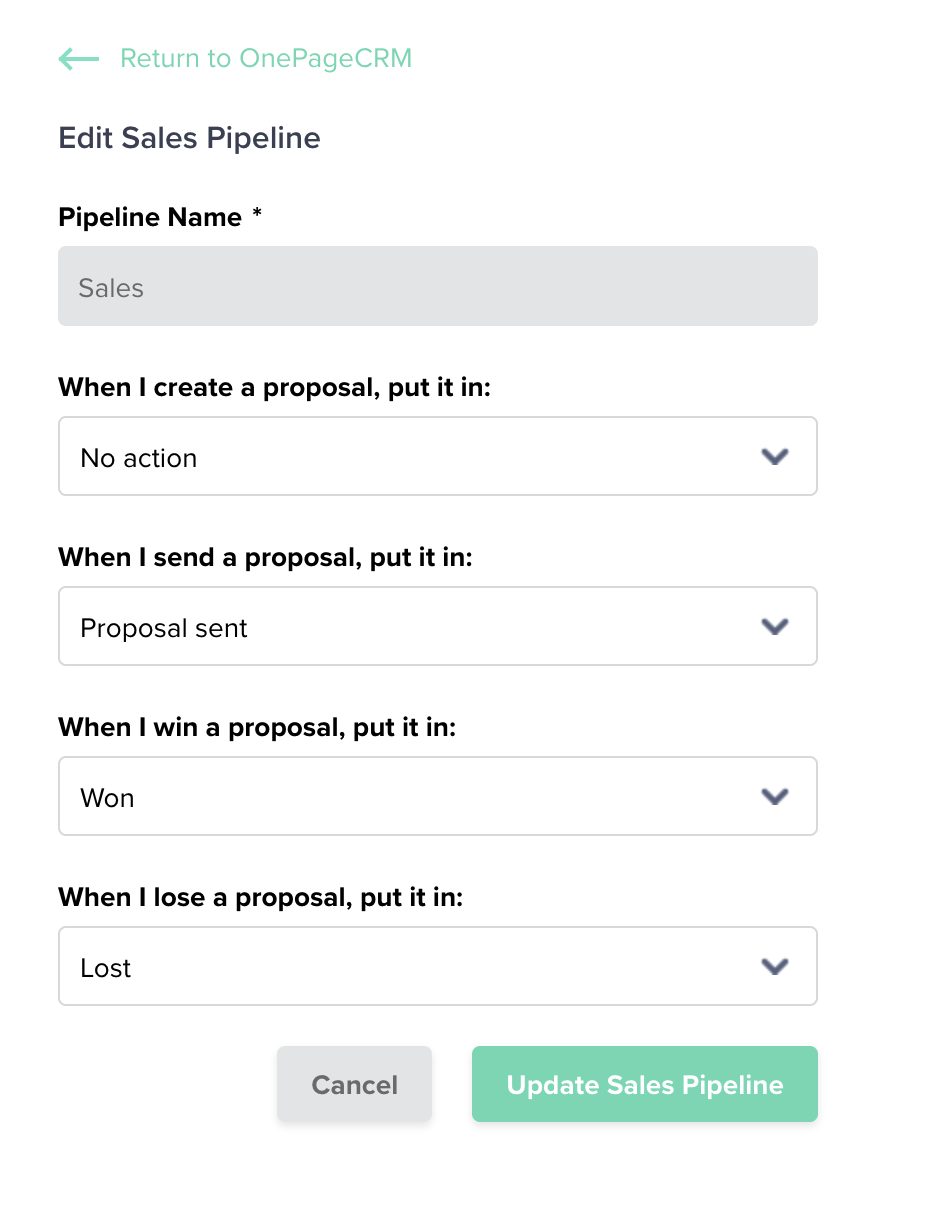
Click on a pipeline to configure what Nusii should do when a proposal changes status. You can set a stage for each proposal event:
- When I create a proposal – Choose a stage or select “No action”.
- When I send a proposal – For example, set it to “Proposal sent”.
- When I win a proposal – Automatically moves to the “Won” stage.
- When I lose a proposal – Automatically moves to the “Lost” stage.
Click Update Sales Pipeline to save your settings.
Step 5: Import your clients
You have two options for importing clients:
- Import All Clients – Imports every contact from your OnePageCRM account into Nusii.
- Import Specific Clients – Opens a drawer where you can search and select which clients you want to import.
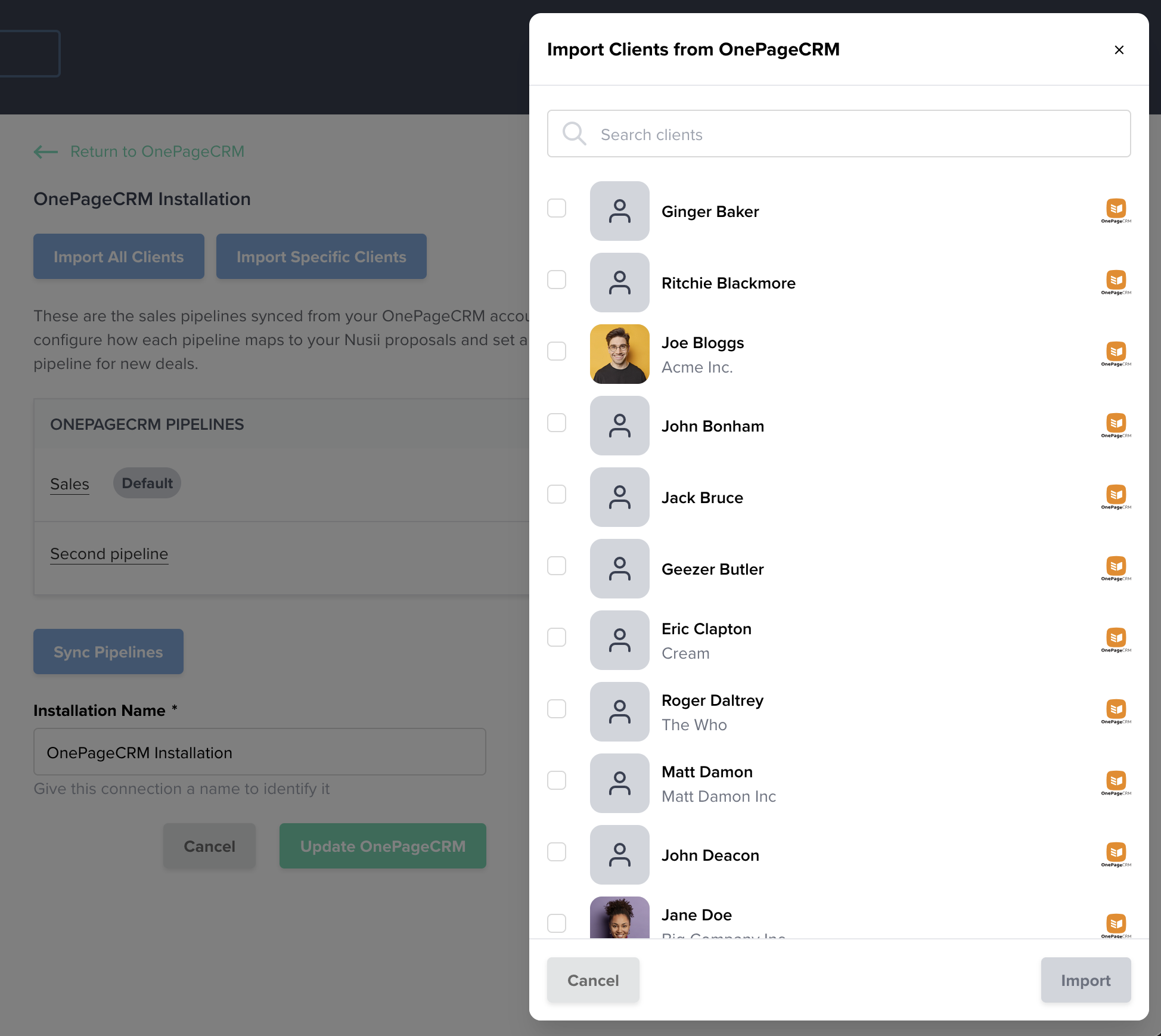
If you create a proposal directly from OnePageCRM (see below), the client is imported automatically – so you don’t need to import them beforehand.
The Sync Pipelines button will re-sync your pipelines from OnePageCRM. This is useful if you’ve added or changed pipelines in OnePageCRM and want those changes reflected in Nusii.
Authenticate Nusii on OnePageCRM
To create proposals straight from the OnePageCRM dashboard, you’ll need to connect Nusii as an app inside OnePageCRM. Head to OnePageCRM’s Apps & Integrations section and look for Nusii. Follow the prompts to authorize the connection.
Once set up, you’ll be able to create Nusii proposals without leaving your OnePageCRM workflow.
How to create a proposal
Once your integration is set up, creating a proposal that syncs with OnePageCRM is straightforward.
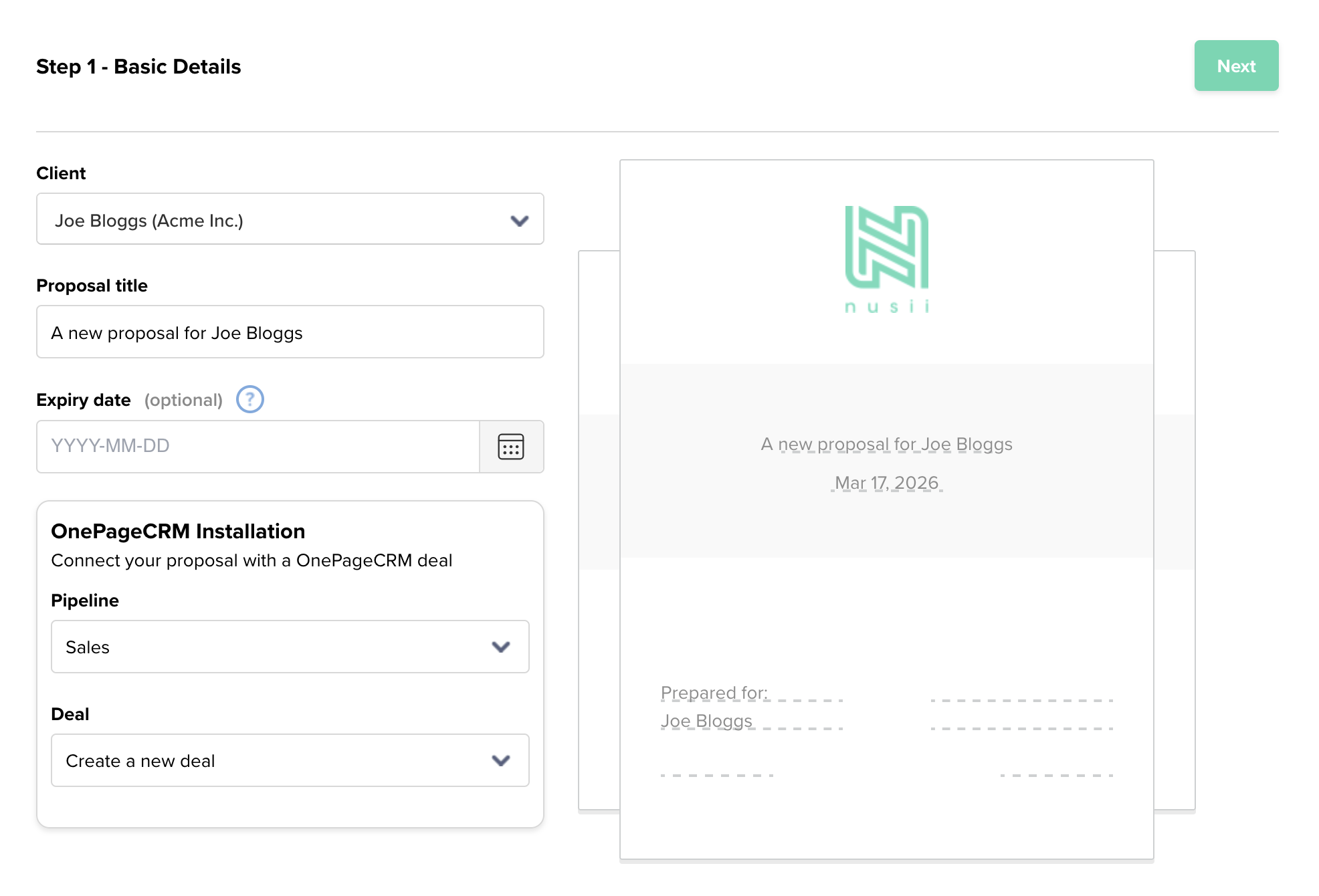
- Go to Proposals and click Create Proposal.
- Select a client that was imported from OnePageCRM.
- In the OnePageCRM Installation section, choose a Pipeline (the default pipeline is pre-selected).
- Under Deal, select Create a new deal or choose an existing deal to sync with.
- Click Next.
- Select a template or start from scratch.
- Send out your proposal.
How it works
Once a proposal is sent, the deal in OnePageCRM will automatically move to the stage you configured for that event. For example, if you set “Proposal sent” as the stage for sent proposals, the deal will update to that stage right away.
When a client accepts the proposal, the deal moves to the Won stage automatically. If the proposal is rejected, it moves to the Lost stage.
The final signed PDF is also automatically uploaded to the deal and the contact in OnePageCRM, so everything is in one place.
All proposals associated with a contact can be viewed directly from the OnePageCRM dashboard, linked to the contact’s email address. This gives you a complete overview of every proposal tied to each client without leaving OnePageCRM.
Related Articles
If you have any questions, just ping us below. We’ll be happy to help!